Gohighlevel WooCommerce Integration
Getting Started
What Is Syncly for GoHighLevel? System Requirements Installation Guide Quick Start: Setup Wizard Plugin Dashboard Overview Free vs Pro: Feature Comparison White-Label Domain Setup WordPress Multisite SetupConnection & Authentication
Connecting via OAuth2 API Scope Detection Multi-Location and Agency Setup Disconnecting and Reconnecting Security Best Practices Connection TroubleshootingField Mapping
How Field Mapping Works Setting Up Field Mapping Sync Direction: To GHL, From GHL, Both Ways Computed and Virtual Fields Extended Field Mapping (Pro) AI-Assisted Field Suggestions (Pro)User Sync & Tag Management
Tag Impact: Preview What a Tag Will Do Before You Apply It Tag Rules: See Every Tag Automation in One Place How User Sync Works Configuring User Sync Settings Bulk User Sync Login Tracking Ping-Pong Prevention Role-Based Tagging System Global Tags (Pro) Sync Preview and Dry Run (Pro) User Profile GHL SectionContent Restrictions
How Tag-Based Restrictions Work Page and Post Metabox Setup [syncly_restrict] Shortcode Gutenberg Restricted Content Block Elementor Widget Conditions (Pro) Archive and REST API Protection (Pro) Admin Bypass and Override Rules (Pro)Forms & Shortcodes
Gravity Forms — Conditional Sync & Automation Embedding Syncly Forms: Overview [syncly_form] Shortcode [syncly_user_meta] Shortcode Syncly Form Gutenberg Block Syncly Form Elementor Widget Per-Form Submission Limits (Pro) Form Autofill and Logged-In-Only Mode Contact Form 7 IntegrationWebhooks & Bulk Import
Setting Up Inbound Webhooks Webhook Event Types Bulk Import from GoHighLevel Webhook Troubleshooting Ping-Pong Prevention and GuardsGohighlevel WooCommerce Integration
WooCommerce Auto-Book Calendar Appointments (Pro) WooCommerce Purchase Workflow Enrollment (Pro) WooCommerce Memberships: Grant Plans Automatically from a GHL Tag (Pro) WooCommerce Subscriptions: Grant Access Automatically from a GHL Tag (Pro) WooCommerce Integration Overview Per-Product GHL Tags (Pro) Abandoned Cart Tracking (Pro) Lead-to-Customer Conversion (Pro) WooCommerce Extended Field Mapping (Pro)LearnDash Integration
LearnDash Integration Overview (Pro) Course Enrollment and Completion Tags (Pro) Tag-Based Auto-Enrollment (Pro) Quiz Score-Based Threshold Tagging (Pro) Lesson and Topic Completion Tags (Pro) Syncing Course Progress to GHL (Pro) LearnDash Group Sync (Pro) LearnDash Extended Field Mapping (Pro)BuddyBoss Integration
BuddyBoss Group Sync to GHL Custom Objects BuddyBoss Group Admin Metabox Bulk Group Sync BuddyBoss XProfile Field Mapping (Pro) Family BuddyBoss Groups (Pro)Pro Features
Gravity Forms — Conditional Sync & Automation Custom Objects: Overview (Pro) Mapping Post Types to GHL Custom Objects (Pro) Custom Object Contact Associations (Pro) Family Relationships: Overview (Pro) Managing Family Members and Invitations (Pro) Family Tag Inheritance (Pro) Conditional Navigation Menus (Pro) [syncly_family_manager] Shortcode (Pro) Analytics Dashboard (Pro) Public REST API Endpoints (Pro)Sync Engine & Troubleshooting
How the Sync Queue Works Sync Logs and Reading Them Enhanced Sync Logs (Pro) Rate Limits and API Quotas Auto-Login Links Email Notifications Setup Advanced Settings (Cache, Batch Size, Retention) Common Issues and Solutions Frequently Asked Questions Uninstalling the PluginGohighlevel WooCommerce Integration
Abandoned Cart Tracking (Pro)
Overview
Syncly can detect WooCommerce carts that are started but not completed and send the customer into your GoHighLevel recovery flow using tags. Your existing GoHighLevel workflows can then handle reminders, offers, or follow-up.
How it works
- Syncly captures the customer’s email during checkout.
- The cart remains tracked while checkout is incomplete.
- After the configured abandonment period, Syncly marks the cart as abandoned.
- The configured abandoned-cart tags are applied to the customer’s GoHighLevel contact.
- If the customer completes the purchase later, recovery tags can be applied and the abandoned-cart state can be cleared according to your settings.
Configure abandoned carts
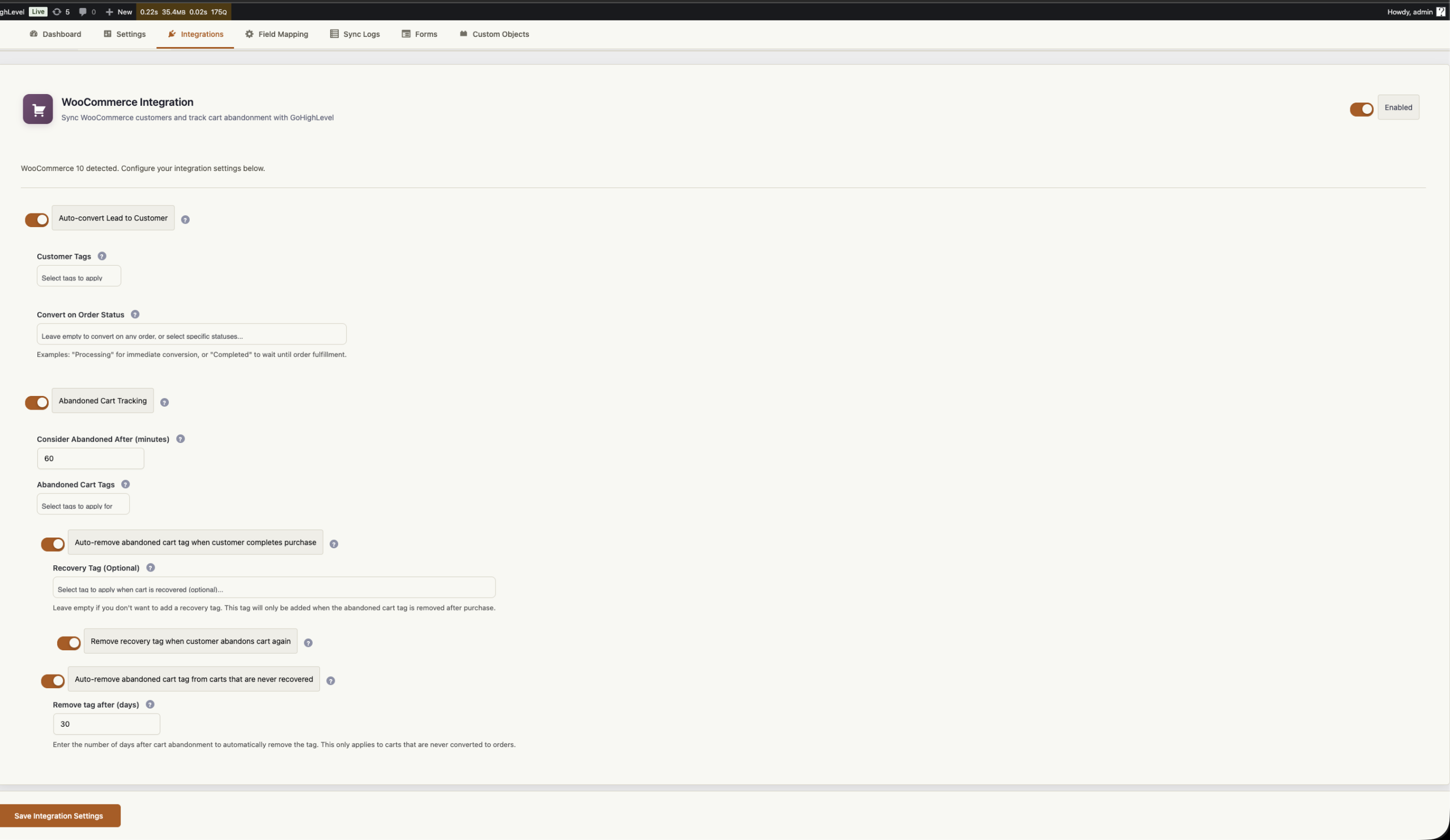
Go to Syncly → Settings → WooCommerce and enable abandoned-cart tracking.
Configure:
- Abandonment threshold: How long the customer can remain without completing checkout before the cart is considered abandoned.
- Abandoned cart tags: Tags applied when the cart becomes abandoned.
- Recovery tags: Tags applied when an abandoned cart is later converted into an order.
- Remove abandoned tag on purchase: Optionally remove the abandoned-cart tag after recovery.
Customer email capture
Abandoned-cart automation needs a customer identifier. Syncly supports email capture from the WooCommerce checkout flow, including the classic checkout and supported WooCommerce Blocks checkout flows.
If no usable email is available, Syncly cannot reliably associate the abandoned cart with a GoHighLevel contact.
Using the tags in GoHighLevel
Syncly does not need to manage your recovery campaign itself. The recommended setup is to let Syncly apply the tags and let GoHighLevel handle the automation.
For example:
- Cart abandoned → apply
abandoned-cart→ start a recovery workflow. - Cart recovered → apply
cart-recovered→ stop the recovery sequence or move the contact into a post-purchase workflow.
What happens when the customer purchases?
When the customer returns and completes checkout, Syncly can treat the order as a recovered cart. Recovery tags can be applied and the abandoned-cart tag can be removed if that option is enabled.
This lets your GoHighLevel workflow stop sending recovery messages after the purchase and start the appropriate post-purchase automation.
Troubleshooting
- No abandoned-cart tag: Check that tracking is enabled and the configured threshold has elapsed.
- Contact not updated: Verify that an email was captured and that the GoHighLevel connection is active.
- Recovery did not happen: Check the order and Sync Logs, then verify the recovery-tag settings.
- Workflow did not start: Confirm that the GoHighLevel workflow is published and uses the expected tag trigger.
Requirements
Abandoned Cart Tracking is a Pro feature. WooCommerce must be active and Syncly must have an active GoHighLevel connection.