Gohighlevel WooCommerce Integration
Getting Started
What Is Syncly for GoHighLevel? System Requirements Installation Guide Quick Start: Setup Wizard Plugin Dashboard Overview Free vs Pro: Feature Comparison White-Label Domain Setup WordPress Multisite SetupConnection & Authentication
Connecting via OAuth2 API Scope Detection Multi-Location and Agency Setup Disconnecting and Reconnecting Security Best Practices Connection TroubleshootingField Mapping
How Field Mapping Works Setting Up Field Mapping Sync Direction: To GHL, From GHL, Both Ways Computed and Virtual Fields Extended Field Mapping (Pro) AI-Assisted Field Suggestions (Pro)User Sync & Tag Management
Tag Impact: Preview What a Tag Will Do Before You Apply It Tag Rules: See Every Tag Automation in One Place How User Sync Works Configuring User Sync Settings Bulk User Sync Login Tracking Ping-Pong Prevention Role-Based Tagging System Global Tags (Pro) Sync Preview and Dry Run (Pro) User Profile GHL SectionContent Restrictions
How Tag-Based Restrictions Work Page and Post Metabox Setup [syncly_restrict] Shortcode Gutenberg Restricted Content Block Elementor Widget Conditions (Pro) Archive and REST API Protection (Pro) Admin Bypass and Override Rules (Pro)Forms & Shortcodes
Gravity Forms — Conditional Sync & Automation Embedding Syncly Forms: Overview [syncly_form] Shortcode [syncly_user_meta] Shortcode Syncly Form Gutenberg Block Syncly Form Elementor Widget Per-Form Submission Limits (Pro) Form Autofill and Logged-In-Only Mode Contact Form 7 IntegrationWebhooks & Bulk Import
Setting Up Inbound Webhooks Webhook Event Types Bulk Import from GoHighLevel Webhook Troubleshooting Ping-Pong Prevention and GuardsGohighlevel WooCommerce Integration
WooCommerce Auto-Book Calendar Appointments (Pro) WooCommerce Purchase Workflow Enrollment (Pro) WooCommerce Memberships: Grant Plans Automatically from a GHL Tag (Pro) WooCommerce Subscriptions: Grant Access Automatically from a GHL Tag (Pro) WooCommerce Integration Overview Per-Product GHL Tags (Pro) Abandoned Cart Tracking (Pro) Lead-to-Customer Conversion (Pro) WooCommerce Extended Field Mapping (Pro)LearnDash Integration
LearnDash Integration Overview (Pro) Course Enrollment and Completion Tags (Pro) Tag-Based Auto-Enrollment (Pro) Quiz Score-Based Threshold Tagging (Pro) Lesson and Topic Completion Tags (Pro) Syncing Course Progress to GHL (Pro) LearnDash Group Sync (Pro) LearnDash Extended Field Mapping (Pro)BuddyBoss Integration
BuddyBoss Group Sync to GHL Custom Objects BuddyBoss Group Admin Metabox Bulk Group Sync BuddyBoss XProfile Field Mapping (Pro) Family BuddyBoss Groups (Pro)Pro Features
Gravity Forms — Conditional Sync & Automation Custom Objects: Overview (Pro) Mapping Post Types to GHL Custom Objects (Pro) Custom Object Contact Associations (Pro) Family Relationships: Overview (Pro) Managing Family Members and Invitations (Pro) Family Tag Inheritance (Pro) Conditional Navigation Menus (Pro) [syncly_family_manager] Shortcode (Pro) Analytics Dashboard (Pro) Public REST API Endpoints (Pro)Sync Engine & Troubleshooting
How the Sync Queue Works Sync Logs and Reading Them Enhanced Sync Logs (Pro) Rate Limits and API Quotas Auto-Login Links Email Notifications Setup Advanced Settings (Cache, Batch Size, Retention) Common Issues and Solutions Frequently Asked Questions Uninstalling the PluginGohighlevel WooCommerce Integration
WooCommerce Auto-Book Calendar Appointments (Pro)
WooCommerce Auto-Book Calendar Appointments
Automatically book a GoHighLevel appointment when a WooCommerce product is purchased. Syncly uses the product’s assigned GHL calendar, finds the first available slot, and creates a confirmed appointment for the customer.
The booking runs through Syncly’s background queue, so API calls benefit from the same retry, rate-limit, authentication, and Sync Logs infrastructure used by other Syncly sync operations.
How It Works
- A WooCommerce product is assigned to a GHL calendar.
- The product is configured with one or more order-status triggers.
- When the order reaches a trigger status, Syncly prepares the booking.
- If the customer’s GHL contact is available, the booking is added to the background queue.
- Syncly finds the first available calendar slot and creates the appointment.
- The appointment is created as
confirmedwith GHL notifications enabled.
Typical flow: Purchase → Trigger status → Queue → First available slot → Confirmed GHL appointment
 Requirements
- WooCommerce must be active.
- Syncly Pro WooCommerce integration must be enabled.
- A GHL OAuth connection and location must be configured.
- The selected GHL calendar must exist in that location.
- The customer must be available as a GHL contact before the appointment can be created.
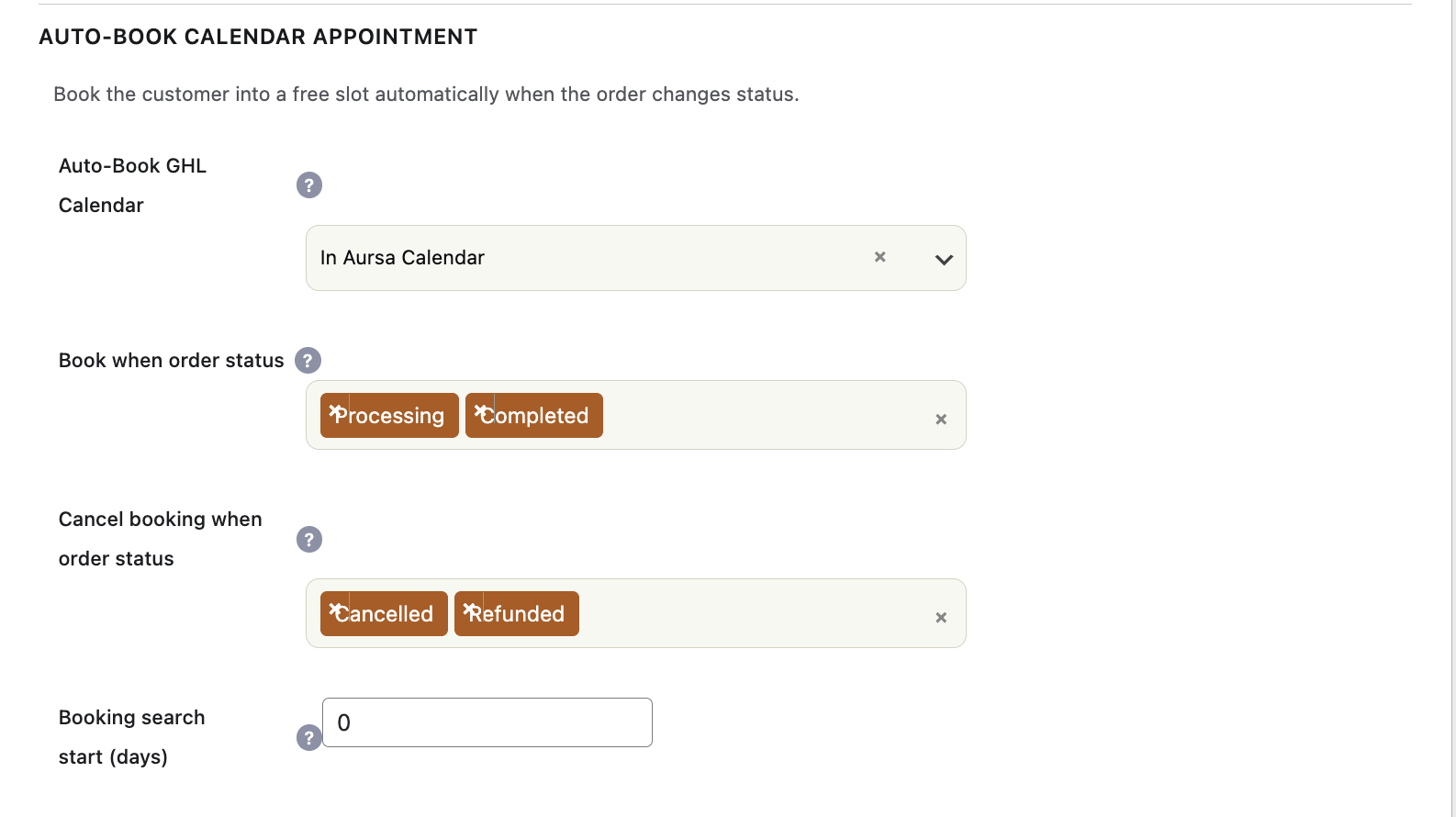
Configure a Product
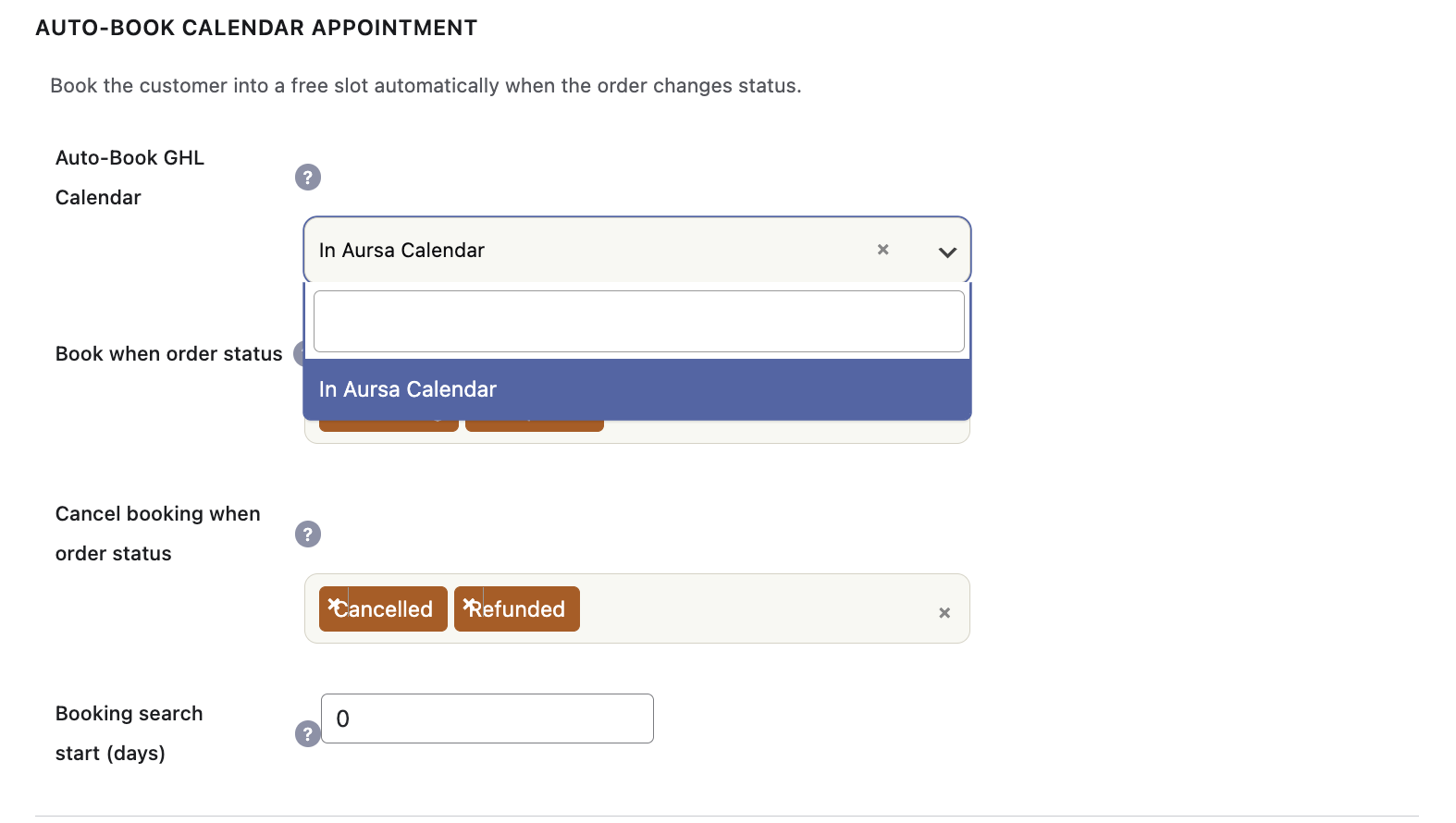
1. Select a GHL Calendar
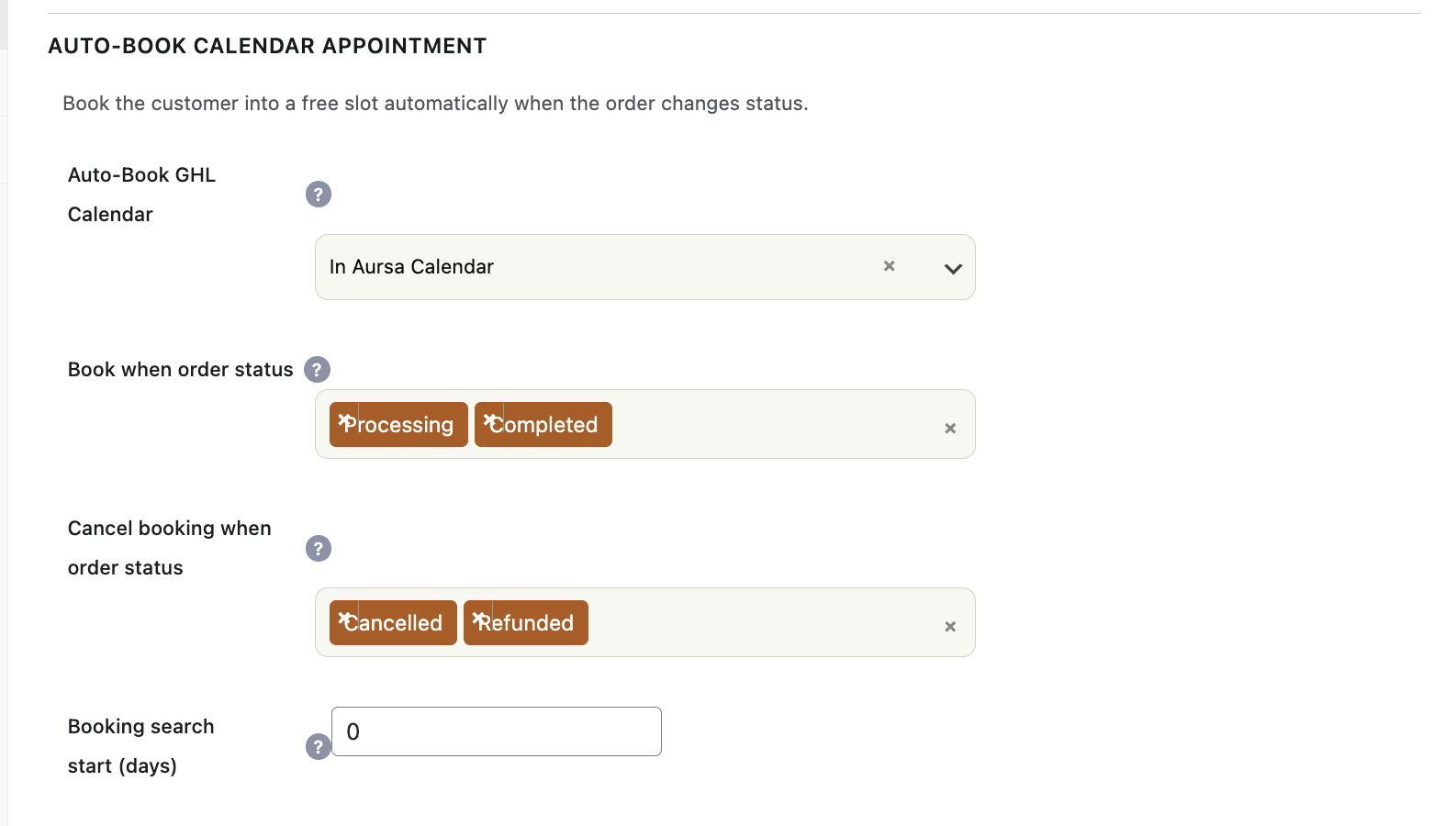
Choose the GHL calendar that should receive appointments for this product. Syncly loads calendars from the connected GHL location and stores the selected calendar ID.
The calendar list is cached for one hour. If a newly created calendar is missing, refresh the cached options before configuring the product.
2. Choose Booking Trigger Statuses
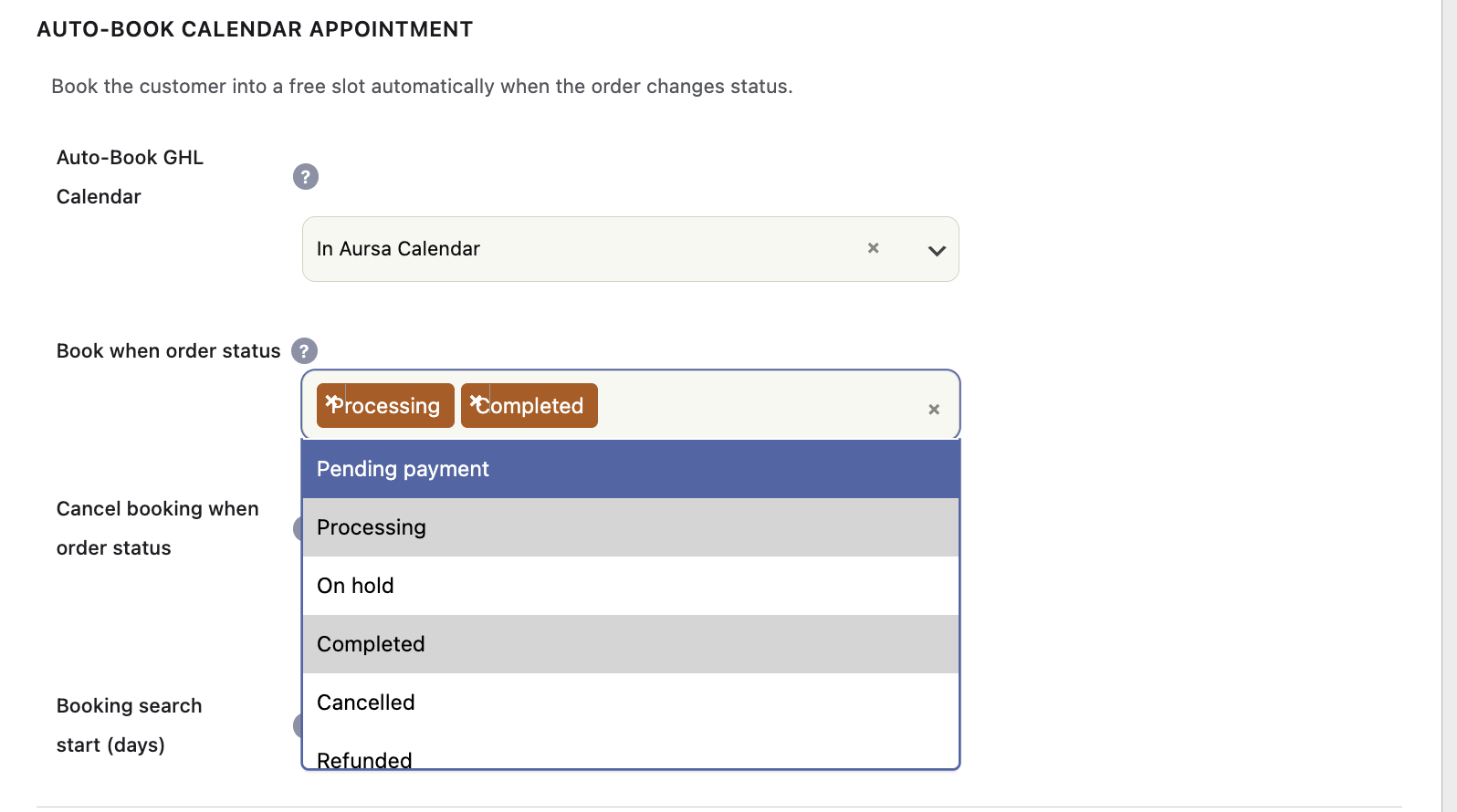
Select the WooCommerce order status or statuses that should start automatic booking. The configuration is per product, so different products can use different triggers.
For example, a service product could trigger booking when an order reaches Processing or Completed.
3. Set an Optional Booking Delay
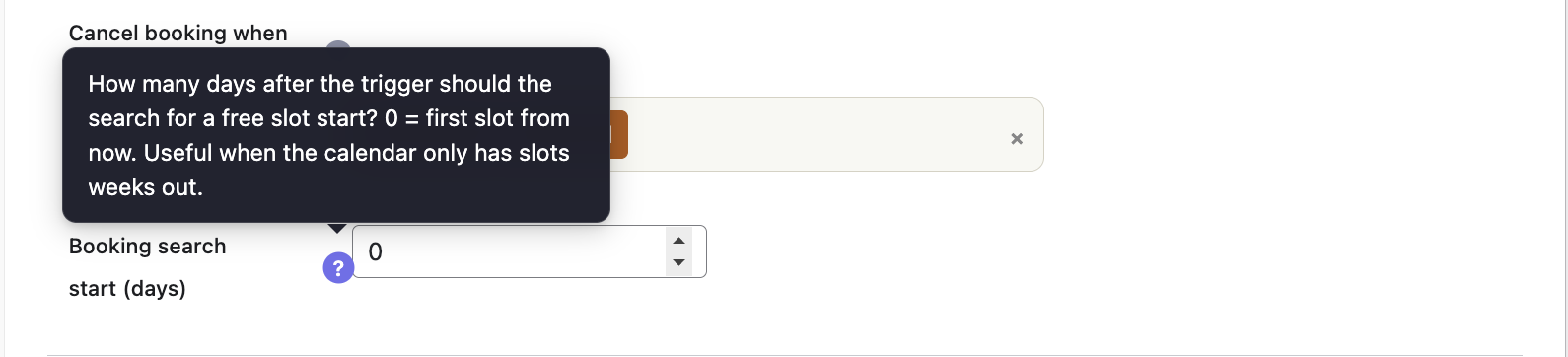
You can delay when Syncly starts looking for an appointment. A delay of 3 days, for example, means availability is searched starting approximately three days after the trigger.
This is useful when customers should not receive an appointment immediately after purchase.
How the Slot Is Selected
Syncly asks GHL for available slots instead of calculating availability itself. It searches two consecutive 15-day windows and selects the first available slot in chronological order.
A roughly three-hour buffer is added before the search begins. This allows GHL’s minimum scheduling notice and calendar rules to influence the available results.
When GHL does not return an end time, Syncly sends only the start time and lets the calendar’s configured appointment duration determine the end time.
What Gets Created in GHL?
The appointment includes:
- GHL calendar ID
- Customer contact ID
- Selected start time
- Product name(s)
- WooCommerce order number
appointmentStatus: confirmedtoNotify: true
The appointment title uses:
Product name(s) — #Order Number
Because notifications are enabled, the selected GHL calendar’s normal confirmation and reminder automations can run for the appointment.
Multiple Products and Calendars
An order can contain multiple products mapped to different calendars. Syncly creates one booking per calendar.
If several products use the same calendar, they are combined into a single booking. Their product names are combined, and the largest configured delay is used for that calendar.
Duplicate Protection
Syncly records successful appointments on the WooCommerce order, including the appointment ID, start time, end time when available, and title.
If a calendar already has a recorded appointment for the order, Syncly skips it. This protects against duplicate bookings when WooCommerce fires the same status transition again or a queue item is retried.
Customers Without a GHL Contact
If the customer’s GHL contact does not exist yet, Syncly does not discard the booking request. It stores the pending booking on the order.
When normal contact synchronization later confirms the GHL contact, Syncly moves the pending booking into the background queue. The queue worker can also fall back to finding the contact by email.
Background Processing
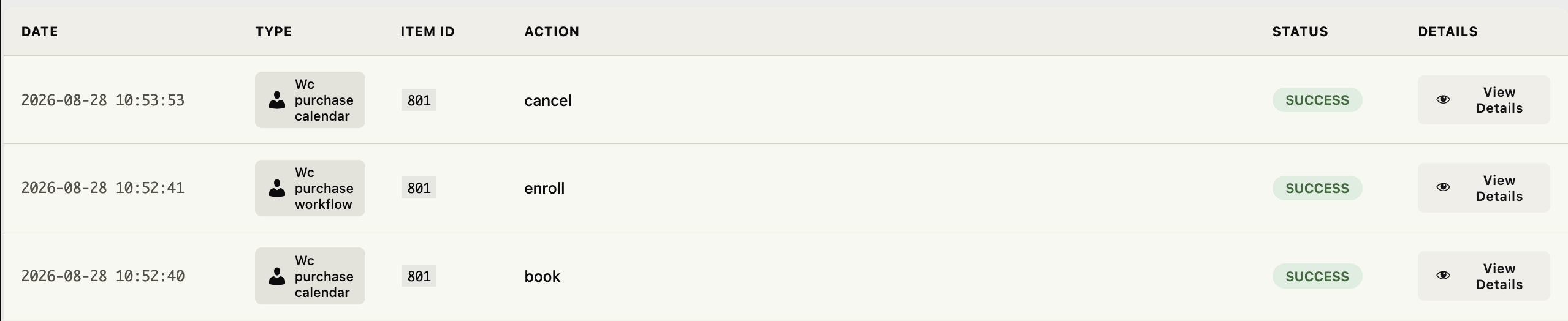
Appointment creation and cancellation use Syncly’s queue item type wc_purchase_calendar.
book— finds a slot and creates the appointment.cancel— cancels an appointment previously created by the purchase flow.
This keeps GHL API mutations out of the WooCommerce status request and provides background processing, retry handling, rate limiting, authentication handling, and Sync Logs visibility.
Cancellation and Refunds
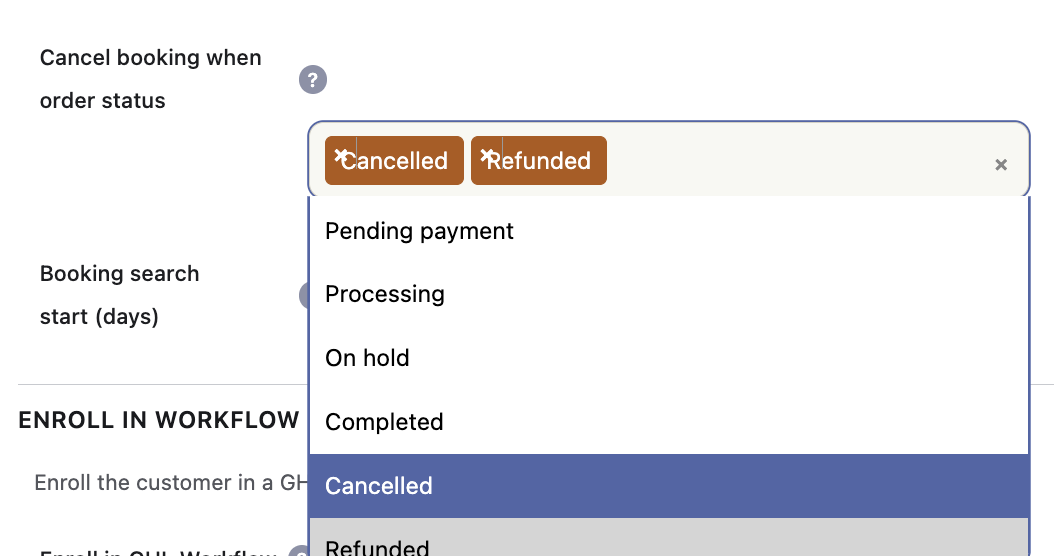
Products can define order statuses that should cancel appointments. When one of those statuses is reached, Syncly queues cancellation for the appointments created from the order.
Appointments are cancelled, not deleted. This preserves the appointment in GHL history while releasing the calendar slot.
Cancellation uses toNotify: false, so Syncly does not send another appointment notification for the cancellation request.
If a status is configured as both a booking trigger and cancellation status, cancellation takes priority.
Safety and Error Handling
Before processing a queued booking, Syncly checks the current WooCommerce order status. If the order has already been cancelled or refunded, the booking is skipped.
Booking errors are stored against the order with the relevant calendar ID. Successful retries clear the corresponding error.
If several calendars are being booked, successful bookings are kept even when another calendar fails. If every booking fails, the queue operation fails so the normal retry mechanism can run.
Troubleshooting
Calendar is missing
Check the GHL OAuth connection, connected location, and calendar. Refresh the cached calendar list if the calendar was recently created.
No appointment was created
Confirm that the product has a calendar, the order reached a configured trigger status, the customer has a billing email, and the booking appears in Sync Logs.
No free slot was found
Syncly searches approximately 30 days of availability across two 15-day windows. Check the calendar’s working hours, availability, scheduling rules, and any configured booking delay.
Appointment was cancelled but still appears in GHL
This is expected. Syncly changes the appointment status to cancelled rather than deleting the appointment, keeping the booking history intact.
Quick Setup
- Open the WooCommerce product.
- Select the GHL calendar.
- Select the order-status trigger.
- Optionally set a booking delay.
- Select cancellation/refund statuses.
- Save the product.
- Place a test order and verify the appointment in GHL and the Sync Logs.
Important
Syncly selects the first free slot returned by GHL. The actual appointment time therefore depends on the GHL calendar’s availability, working hours, scheduling rules, minimum notice, and configured duration.