Sync Engine & Troubleshooting
Getting Started
What Is Syncly for GoHighLevel? System Requirements Installation Guide Quick Start: Setup Wizard Plugin Dashboard Overview Free vs Pro: Feature Comparison White-Label Domain Setup WordPress Multisite SetupConnection & Authentication
Connecting via OAuth2 API Scope Detection Multi-Location and Agency Setup Disconnecting and Reconnecting Security Best Practices Connection TroubleshootingField Mapping
How Field Mapping Works Setting Up Field Mapping Sync Direction: To GHL, From GHL, Both Ways Computed and Virtual Fields Extended Field Mapping (Pro) AI-Assisted Field Suggestions (Pro)User Sync & Tag Management
Tag Impact: Preview What a Tag Will Do Before You Apply It Tag Rules: See Every Tag Automation in One Place How User Sync Works Configuring User Sync Settings Bulk User Sync Login Tracking Ping-Pong Prevention Role-Based Tagging System Global Tags (Pro) Sync Preview and Dry Run (Pro) User Profile GHL SectionContent Restrictions
How Tag-Based Restrictions Work Page and Post Metabox Setup [syncly_restrict] Shortcode Gutenberg Restricted Content Block Elementor Widget Conditions (Pro) Archive and REST API Protection (Pro) Admin Bypass and Override Rules (Pro)Forms & Shortcodes
Gravity Forms — Conditional Sync & Automation Embedding Syncly Forms: Overview [syncly_form] Shortcode [syncly_user_meta] Shortcode Syncly Form Gutenberg Block Syncly Form Elementor Widget Per-Form Submission Limits (Pro) Form Autofill and Logged-In-Only Mode Contact Form 7 IntegrationWebhooks & Bulk Import
Setting Up Inbound Webhooks Webhook Event Types Bulk Import from GoHighLevel Webhook Troubleshooting Ping-Pong Prevention and GuardsGohighlevel WooCommerce Integration
WooCommerce Auto-Book Calendar Appointments (Pro) WooCommerce Purchase Workflow Enrollment (Pro) WooCommerce Memberships: Grant Plans Automatically from a GHL Tag (Pro) WooCommerce Subscriptions: Grant Access Automatically from a GHL Tag (Pro) WooCommerce Integration Overview Per-Product GHL Tags (Pro) Abandoned Cart Tracking (Pro) Lead-to-Customer Conversion (Pro) WooCommerce Extended Field Mapping (Pro)LearnDash Integration
LearnDash Integration Overview (Pro) Course Enrollment and Completion Tags (Pro) Tag-Based Auto-Enrollment (Pro) Quiz Score-Based Threshold Tagging (Pro) Lesson and Topic Completion Tags (Pro) Syncing Course Progress to GHL (Pro) LearnDash Group Sync (Pro) LearnDash Extended Field Mapping (Pro)BuddyBoss Integration
BuddyBoss Group Sync to GHL Custom Objects BuddyBoss Group Admin Metabox Bulk Group Sync BuddyBoss XProfile Field Mapping (Pro) Family BuddyBoss Groups (Pro)Pro Features
Gravity Forms — Conditional Sync & Automation Custom Objects: Overview (Pro) Mapping Post Types to GHL Custom Objects (Pro) Custom Object Contact Associations (Pro) Family Relationships: Overview (Pro) Managing Family Members and Invitations (Pro) Family Tag Inheritance (Pro) Conditional Navigation Menus (Pro) [syncly_family_manager] Shortcode (Pro) Analytics Dashboard (Pro) Public REST API Endpoints (Pro)Sync Engine & Troubleshooting
How the Sync Queue Works Sync Logs and Reading Them Enhanced Sync Logs (Pro) Rate Limits and API Quotas Auto-Login Links Email Notifications Setup Advanced Settings (Cache, Batch Size, Retention) Common Issues and Solutions Frequently Asked Questions Uninstalling the PluginSync Engine & Troubleshooting
Auto-Login Links
What auto-login links do
Auto-login links let you send a WordPress user directly into your site without asking them to enter their WordPress password. Syncly generates a short-lived, single-use URL that authenticates the intended WordPress user when the link is opened.
This is especially useful with GoHighLevel (GHL) email campaigns and automations. For example, you can send a contact from GHL to a members-only page after the contact has already been identified in your workflow.
How to generate an auto-login link
- In WordPress, go to Users > All Users.
- Open the WordPress user who should be authenticated.
- Find the GoHighLevel section in the user’s profile.
- Click Generate Auto-Login Link.
- Copy the complete generated URL.
- Place the URL in your GHL email, workflow, campaign, or other trusted message where the intended user will receive it.
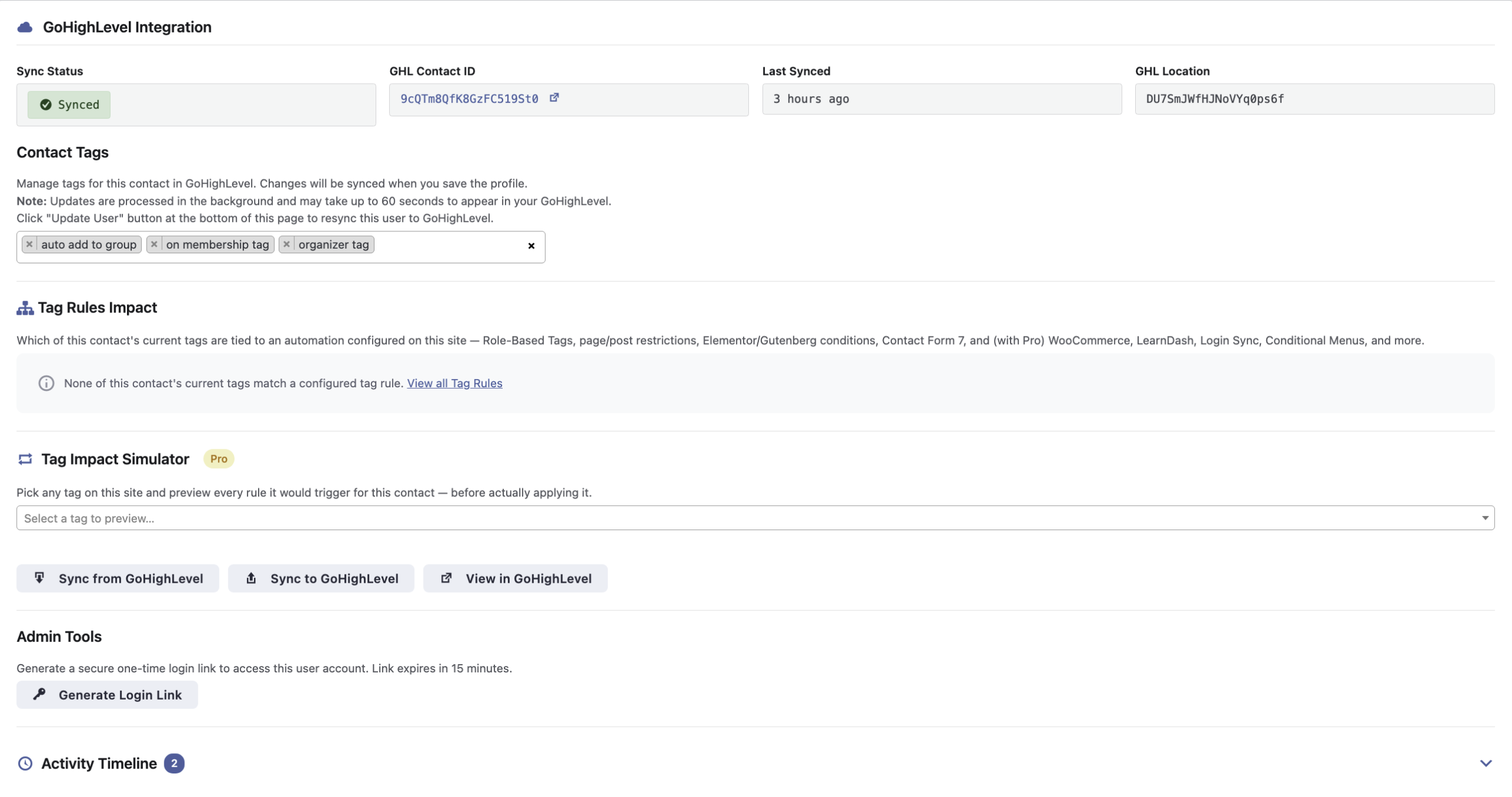
The link is generated for the specific WordPress user whose profile you are editing. Always verify that you have selected the correct user before generating or sending it.
What the generated link looks like
After clicking Generate Auto-Login Link, Syncly provides a URL that you can copy and use in your trusted communication. The URL contains a temporary authentication token associated with the selected WordPress user.

Never publish the real generated URL in documentation. Treat it as an authentication credential.
What happens when the user opens the link
When the recipient opens an unused and valid auto-login URL, Syncly validates the temporary token and identifies the WordPress user associated with it. If validation succeeds, WordPress authenticates that user and continues the request without requiring the normal username/password login form.
The token is then consumed, so the same URL cannot be used as a permanent login method.
Token lifetime and one-time use
Auto-login links are intentionally short-lived and single-use:
- Expiration: the link expires after 15 minutes.
- One-time use: once successfully used, the token cannot be used again.
- Random token: the generated token is a 64-character cryptographically random hexadecimal value.
- Hashed storage: Syncly stores a SHA-256 hash of the token in WordPress user meta rather than storing the raw token.
- Cleanup: expired tokens are cleaned up automatically.
This design limits the usefulness of a leaked or intercepted URL and prevents a generated link from becoming a permanent login credential.
If the link does not work
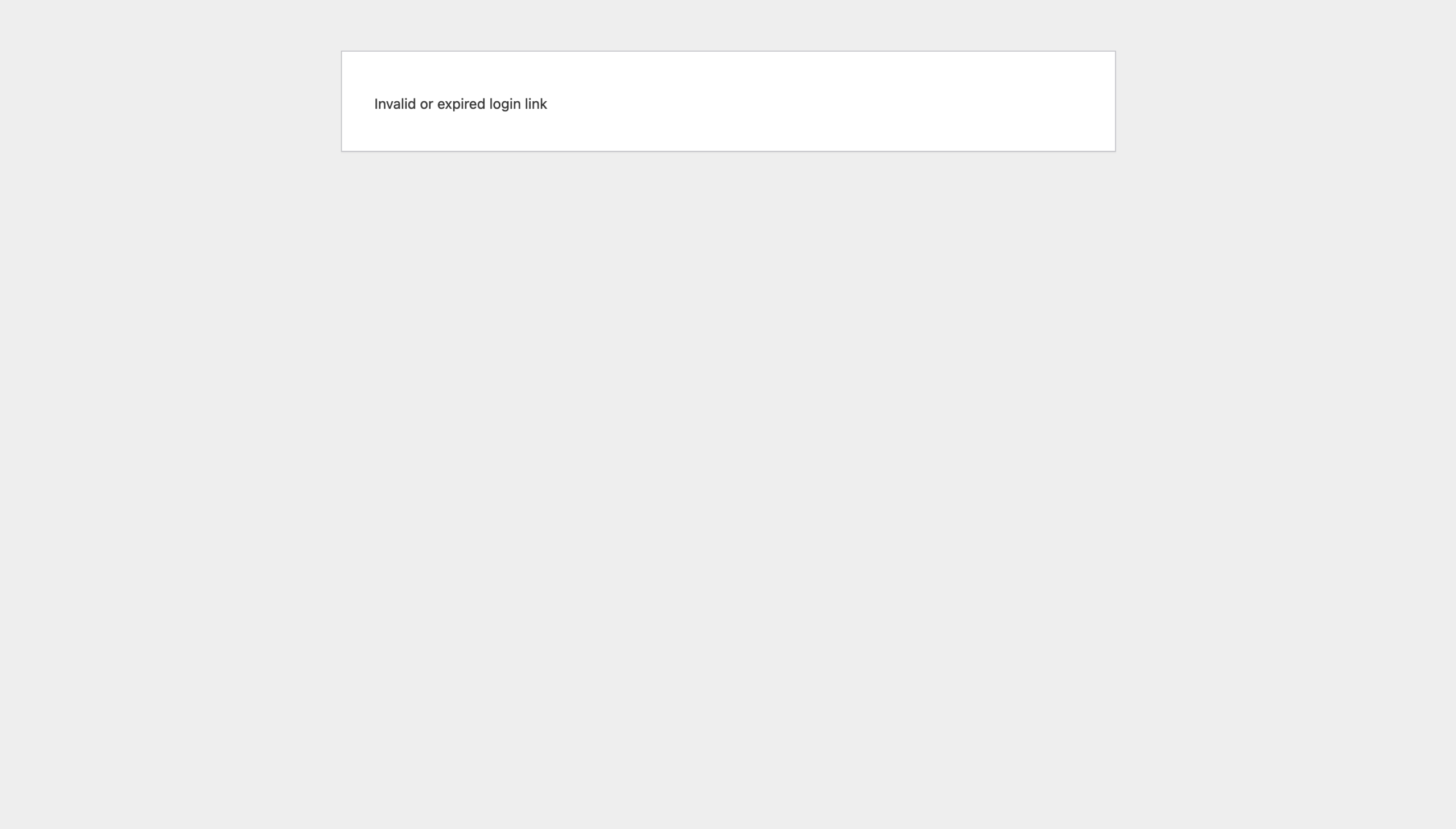
If an auto-login link fails, generate a new link first. The most common reason is that the original token has expired or has already been consumed.
- Link is older than 15 minutes: generate a new link.
- Link was already opened successfully: it cannot be reused; generate another link.
- Wrong WordPress user: return to Users > All Users, open the intended user, and generate a new link from that profile.
- Link was copied incorrectly: copy the complete generated URL again and avoid manually modifying it.
- Testing repeatedly: generate a fresh link for each test because successful tokens are single-use.
Security considerations
- Never publish auto-login URLs on public pages, documentation, source code, or public logs.
- Do not include auto-login URLs in analytics events or third-party tracking parameters.
- Do not send a link generated for one user to another user.
- Use HTTPS on the WordPress site so the URL is protected while it is being transmitted.
- If a link may have been exposed, do not continue using it; generate a fresh link instead.
Recommended workflow
For production use, treat auto-login links as short-lived access credentials rather than ordinary page URLs. Generate them as close as practical to when they will be sent, send them only to the intended user, and avoid storing or logging the complete URL outside the systems that need it.
Quick checklist
- Open the correct WordPress user.
- Generate the link from the GoHighLevel profile section.
- Use the complete generated URL.
- Send it only to the intended recipient.
- Remember that it expires after 15 minutes.
- Remember that it can only be used once.
- Generate a new link when testing or when a previous link has expired or been consumed.
- Redact authentication tokens before taking screenshots for documentation.