Gohighlevel WooCommerce Integration
Getting Started
What Is Syncly for GoHighLevel? System Requirements Installation Guide Quick Start: Setup Wizard Plugin Dashboard Overview Free vs Pro: Feature Comparison White-Label Domain Setup WordPress Multisite SetupConnection & Authentication
Connecting via OAuth2 API Scope Detection Multi-Location and Agency Setup Disconnecting and Reconnecting Security Best Practices Connection TroubleshootingField Mapping
How Field Mapping Works Setting Up Field Mapping Sync Direction: To GHL, From GHL, Both Ways Computed and Virtual Fields Extended Field Mapping (Pro) AI-Assisted Field Suggestions (Pro)User Sync & Tag Management
Tag Impact: Preview What a Tag Will Do Before You Apply It Tag Rules: See Every Tag Automation in One Place How User Sync Works Configuring User Sync Settings Bulk User Sync Login Tracking Ping-Pong Prevention Role-Based Tagging System Global Tags (Pro) Sync Preview and Dry Run (Pro) User Profile GHL SectionContent Restrictions
How Tag-Based Restrictions Work Page and Post Metabox Setup [syncly_restrict] Shortcode Gutenberg Restricted Content Block Elementor Widget Conditions (Pro) Archive and REST API Protection (Pro) Admin Bypass and Override Rules (Pro)Forms & Shortcodes
Gravity Forms — Conditional Sync & Automation Embedding Syncly Forms: Overview [syncly_form] Shortcode [syncly_user_meta] Shortcode Syncly Form Gutenberg Block Syncly Form Elementor Widget Per-Form Submission Limits (Pro) Form Autofill and Logged-In-Only Mode Contact Form 7 IntegrationWebhooks & Bulk Import
Setting Up Inbound Webhooks Webhook Event Types Bulk Import from GoHighLevel Webhook Troubleshooting Ping-Pong Prevention and GuardsGohighlevel WooCommerce Integration
WooCommerce Auto-Book Calendar Appointments (Pro) WooCommerce Purchase Workflow Enrollment (Pro) WooCommerce Memberships: Grant Plans Automatically from a GHL Tag (Pro) WooCommerce Subscriptions: Grant Access Automatically from a GHL Tag (Pro) WooCommerce Integration Overview Per-Product GHL Tags (Pro) Abandoned Cart Tracking (Pro) Lead-to-Customer Conversion (Pro) WooCommerce Extended Field Mapping (Pro)LearnDash Integration
LearnDash Integration Overview (Pro) Course Enrollment and Completion Tags (Pro) Tag-Based Auto-Enrollment (Pro) Quiz Score-Based Threshold Tagging (Pro) Lesson and Topic Completion Tags (Pro) Syncing Course Progress to GHL (Pro) LearnDash Group Sync (Pro) LearnDash Extended Field Mapping (Pro)BuddyBoss Integration
BuddyBoss Group Sync to GHL Custom Objects BuddyBoss Group Admin Metabox Bulk Group Sync BuddyBoss XProfile Field Mapping (Pro) Family BuddyBoss Groups (Pro)Pro Features
Gravity Forms — Conditional Sync & Automation Custom Objects: Overview (Pro) Mapping Post Types to GHL Custom Objects (Pro) Custom Object Contact Associations (Pro) Family Relationships: Overview (Pro) Managing Family Members and Invitations (Pro) Family Tag Inheritance (Pro) Conditional Navigation Menus (Pro) [syncly_family_manager] Shortcode (Pro) Analytics Dashboard (Pro) Public REST API Endpoints (Pro)Sync Engine & Troubleshooting
How the Sync Queue Works Sync Logs and Reading Them Enhanced Sync Logs (Pro) Rate Limits and API Quotas Auto-Login Links Email Notifications Setup Advanced Settings (Cache, Batch Size, Retention) Common Issues and Solutions Frequently Asked Questions Uninstalling the PluginGohighlevel WooCommerce Integration
WooCommerce Purchase Workflow Enrollment (Pro)
Overview
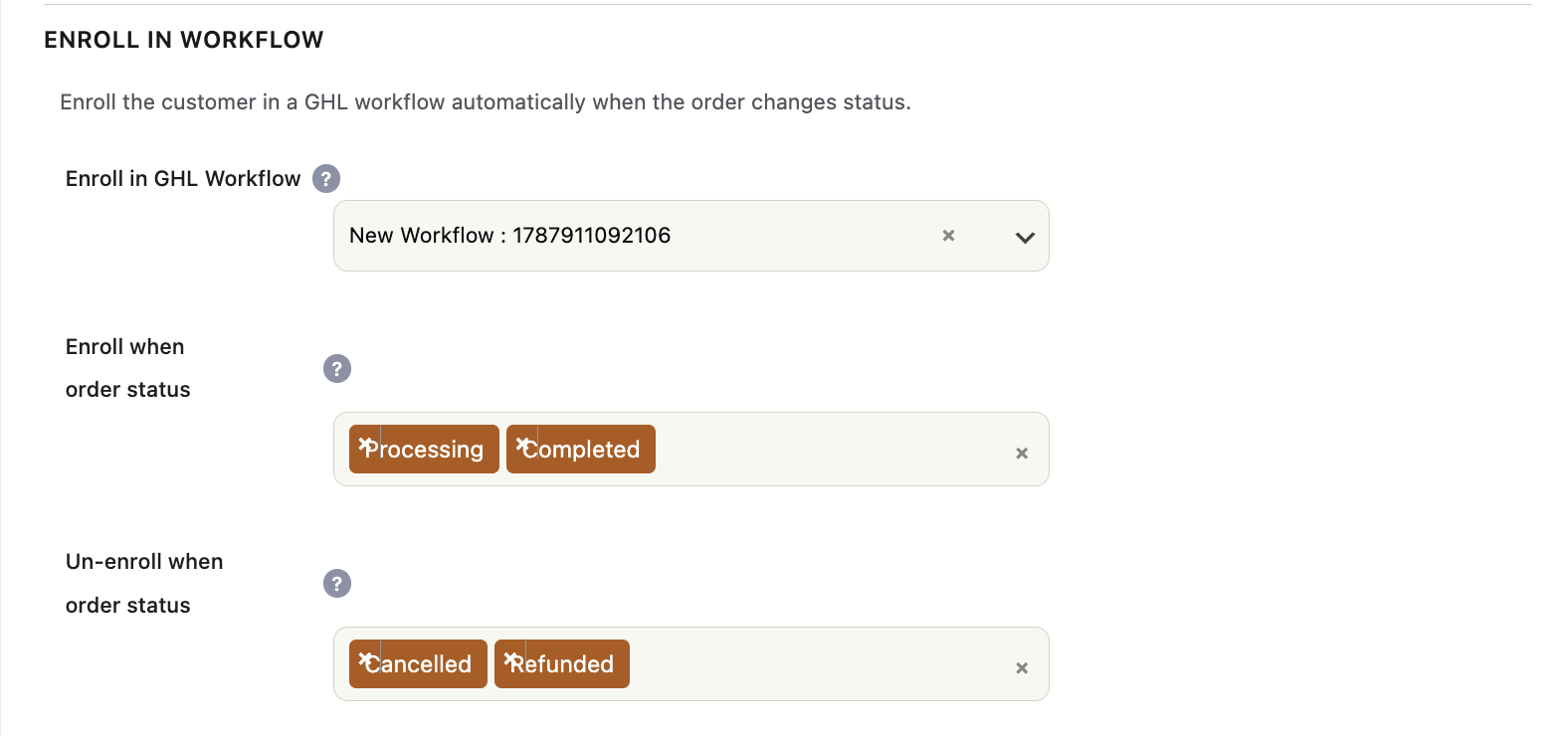
WooCommerce Purchase Workflow Enrollment lets you connect a WooCommerce product to a GoHighLevel (GHL) workflow. When a customer reaches one of the configured order statuses, Syncly automatically enrolls the customer’s GHL contact into the selected workflow.
The feature is designed for purchase-driven automation. For example, you can configure a product so that when an order becomes Processing or Completed, the buyer is added to a GHL workflow that sends onboarding emails, starts a follow-up sequence, delivers instructions, or performs any other automation configured in GHL.
Syncly performs the GHL mutation through its background synchronization queue rather than making the API request directly inside the WooCommerce order-status hook. This means workflow enrollment benefits from the same queue-based processing, retry handling, rate limiting, authentication handling, and sync logging used by other Syncly background operations.
What This Feature Does
- Assigns a specific GHL workflow to a WooCommerce product.
- Triggers workflow enrollment when an order reaches configured WooCommerce statuses.
- Supports separate cancellation statuses for removing the contact from the workflow.
- Uses the customer’s existing GHL contact when Syncly already knows the contact ID.
- Can resolve a GHL contact by the customer’s billing email when necessary.
- Queues GHL API mutations for background processing instead of executing them inline.
- Prevents duplicate processing of the same configured order-status trigger.
- Tracks which workflows were successfully enrolled for an order.
- Removes enrolled contacts from configured workflows when an order reaches a cancellation/refund status.
- Supports optional workflow enrollment on WooCommerce Subscriptions renewal payments.
- Handles the case where a WooCommerce customer does not yet have a GHL contact by parking the enrollment until contact synchronization completes.
Requirements
- WooCommerce must be installed and active.
- The Syncly WooCommerce integration must be enabled.
- Syncly must have a configured GHL OAuth connection.
- The connected GHL location must be available to Syncly.
- The workflow you want to use must exist in the connected GHL location and be published.
- WooCommerce Subscriptions is required only if you want to use renewal-based workflow enrollment.
Before You Start
Before configuring a product, create and publish the desired automation in GoHighLevel. Syncly loads the available published workflows from the connected GHL location and presents them as selectable workflow options in the WooCommerce product settings.
If a workflow is unpublished, it will not be included in the workflow selector.
Make sure the GHL workflow is designed to handle a contact entering the workflow at the moment of purchase. Syncly sends the workflow enrollment request with the event start time set to the current time so the workflow can begin immediately according to its GHL configuration.
Configuring a Product
1. Edit the WooCommerce product
Open the WooCommerce product that should trigger the GHL automation.
2. Select a GHL workflow
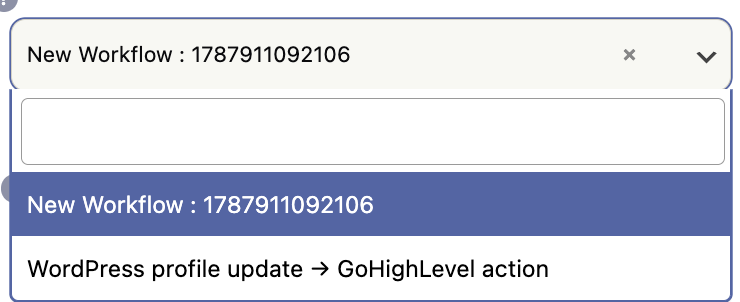
In the product’s Syncly/GHL workflow settings, select the workflow that should receive the customer after the configured purchase event.
The workflow selector is populated from the connected GHL location. Syncly caches the available workflow list for one hour to avoid repeatedly requesting the same workflow data from GHL.
3. Configure the trigger order statuses
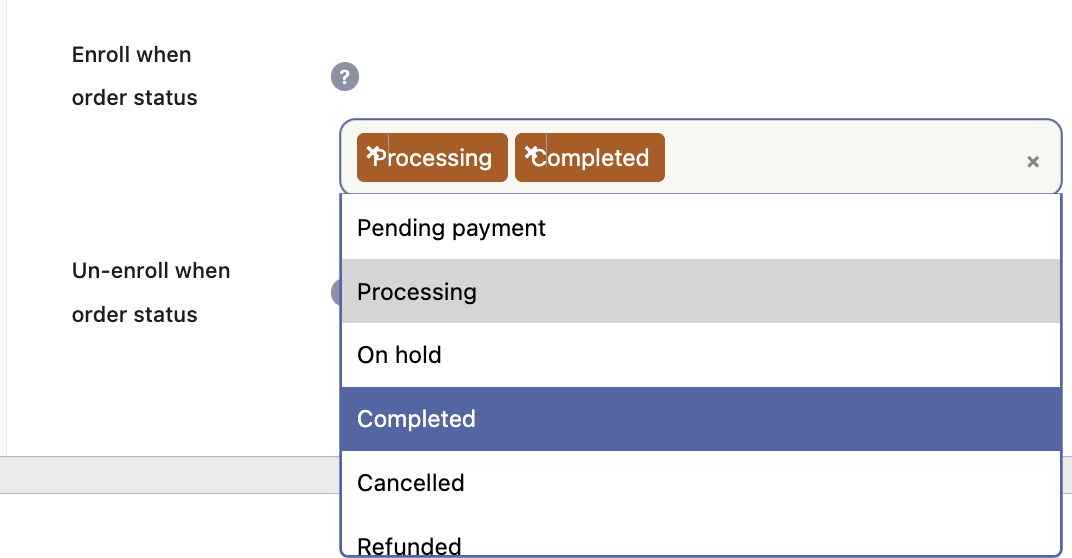
Select the WooCommerce order status or statuses that should cause the workflow enrollment to be queued.
This allows you to control exactly when the purchase automation begins. For example:
- Processing: enroll as soon as payment has been accepted and the order enters processing.
- Completed: enroll only after the order is marked completed.
Choose the status that matches the business event represented by your workflow. If the workflow is intended to begin immediately after a successful payment, a payment-confirmed/processing status may be appropriate. If it represents post-fulfillment onboarding, Completed may be more appropriate.
4. Configure cancellation statuses
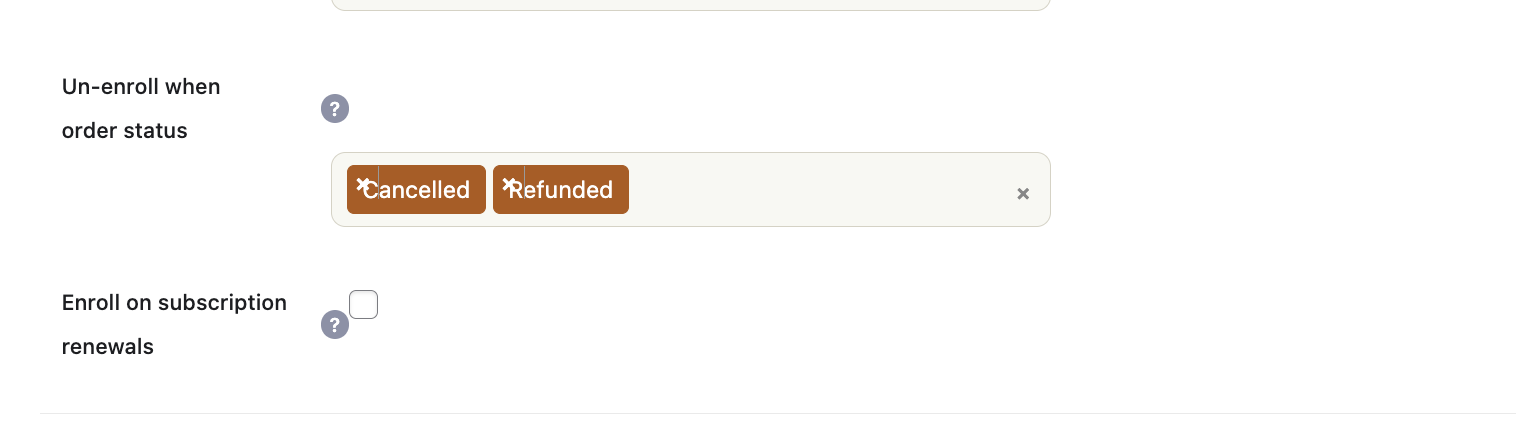
Configure the WooCommerce statuses that should remove the customer from the workflow.
This is useful when an order is cancelled or refunded and you no longer want the customer to continue through a purchase-related automation.
When a configured cancellation status is reached, cancellation takes precedence over enrollment for that transition. This prevents Syncly from simultaneously treating the same status transition as both a trigger and a cancellation.
5. Optional: enable renewal enrollment
If the product is a WooCommerce Subscription product, you can optionally configure the product to enroll the customer again whenever a subscription renewal payment is completed.
This is useful for recurring purchase cycles where every successful renewal should initiate the same or another GHL workflow.
How Enrollment Works
The workflow enrollment process is intentionally asynchronous. Syncly does not perform the GHL workflow mutation directly during the WooCommerce order-status callback.
- A WooCommerce order changes status.
- Syncly checks each product in the order for a configured GHL workflow.
- Syncly checks whether the new order status is configured as an enrollment trigger or cancellation status.
- If enrollment is required, Syncly determines the customer’s GHL contact ID.
- If the contact is already known, Syncly creates a background queue item for the workflow enrollment.
- If the contact is not yet available, Syncly stores the pending workflow enrollment on the order.
- When contact synchronization later confirms the GHL contact, Syncly flushes the pending enrollment and queues it for processing.
- The queue processor sends the GHL workflow enrollment request in the background.
- Successfully enrolled workflows are recorded on the WooCommerce order to maintain idempotency and support later cancellation.
GHL Contact Resolution
Syncly first attempts to use the GHL contact ID already associated with the WooCommerce customer’s WordPress user.
If a contact ID is not available in a renewal context, Syncly can fall back to resolving the contact using the renewal order’s billing email address.
For normal purchase-status processing, when the customer does not yet have a GHL contact, Syncly does not immediately discard the requested workflow enrollment. Instead, it parks the workflow IDs on the WooCommerce order and waits for the customer/contact synchronization process to establish the GHL contact.
Pending Enrollments
A pending enrollment is used when the WooCommerce purchase has already reached the configured trigger status, but the customer’s GHL contact is not available yet.
Syncly stores the requested workflow IDs on the order and associates the pending order with the WordPress user. When a successful customer/user synchronization confirms the GHL contact, Syncly looks for the pending order, queues the workflow enrollment, and clears the pending marker.
This prevents a timing race between the WooCommerce purchase event and the initial GHL contact synchronization.
Duplicate Protection
Syncly tracks processed workflow trigger statuses on the order. If the same order-status transition is processed again, Syncly will not queue the same trigger a second time.
Syncly also tracks the workflow IDs successfully enrolled for an order. A workflow already recorded as enrolled is skipped if the enrollment queue is processed again.
This combination protects repeated WooCommerce hooks, queue retries, and other situations where the same purchase event may be observed more than once.
Background Queue Processing
Workflow enrollment uses Syncly’s background queue architecture. The WooCommerce order hook only determines what should happen and adds the required task to the queue.
The actual GHL API mutation is performed later by the queue processor. This keeps the WooCommerce request from being blocked by a remote GHL API call and allows the operation to use the plugin’s existing background-processing behavior.
Queue processing provides the following operational benefits:
- Retry handling: transient failures can be retried by the queue processor.
- Rate limiting: GHL requests remain subject to the plugin’s queue/API processing controls.
- Authentication handling: the normal Syncly GHL API client is used for the mutation.
- Sync visibility: the operation follows the same background synchronization model used by other Syncly integrations.
- Reduced checkout/status-hook latency: the WooCommerce request does not wait for the GHL workflow enrollment API call to complete.
What API Operation Is Used?
Syncly uses GHL’s native contact workflow enrollment endpoint:
POST /contacts/{contactId}/workflow/{workflowId}
The request includes an eventStartTime value representing the current UTC time. This tells GHL that the workflow event should start immediately rather than being scheduled for a future time by Syncly.
Syncly can enroll the same contact into multiple workflows when multiple configured workflow IDs are associated with the order’s products.
Multiple Products and Workflows
Each product in an order is evaluated independently. If multiple products have workflows configured and their trigger conditions are satisfied, Syncly collects the workflow IDs and removes duplicates before queueing the enrollment.
For example, an order containing:
- Product A → Onboarding Workflow
- Product B → Premium Customer Workflow
can result in the same GHL contact being enrolled in both workflows.
If the same workflow is configured on more than one product in the same order, Syncly deduplicates the workflow ID so it is not unnecessarily enrolled twice.
Cancellation and Refund Handling
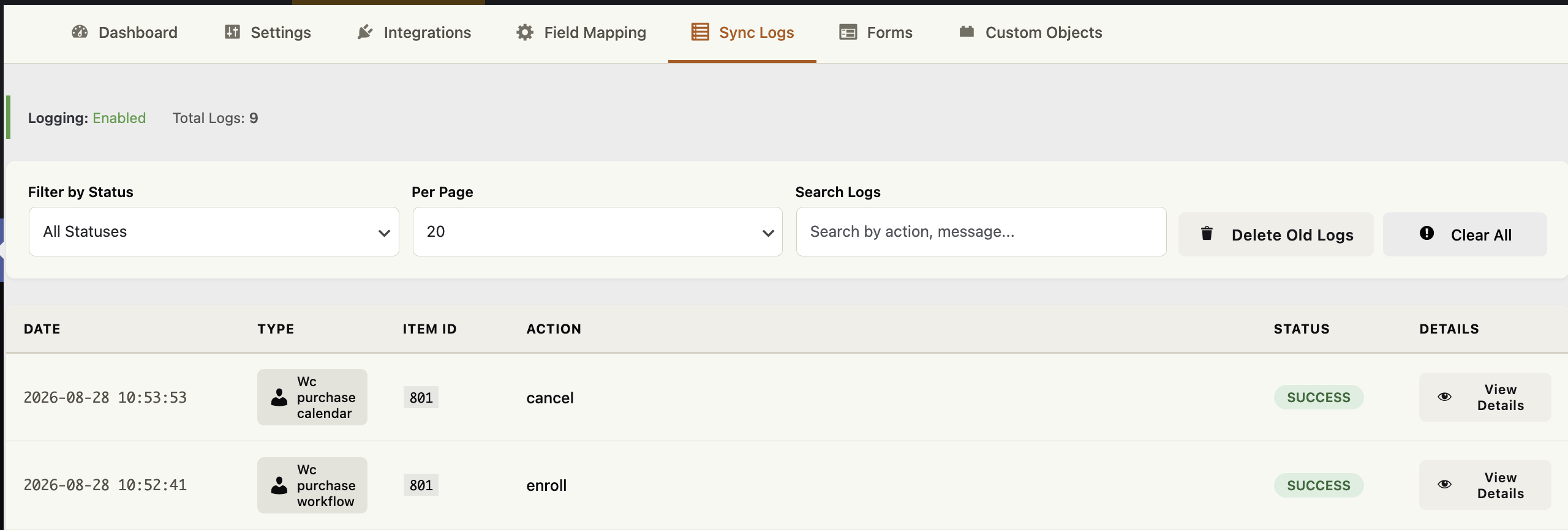
Cancellation statuses are handled separately from enrollment statuses. When a configured cancellation status is reached, Syncly looks at the workflows previously recorded as successfully enrolled for the order.
Syncly then queues a cancellation task for those workflows. The background queue processor uses GHL’s native workflow removal endpoint:
DELETE /contacts/{contactId}/workflow/{workflowId}
After a workflow is successfully removed, its ID is removed from the order’s enrolled-workflow record.
If some workflow removals succeed while others fail, Syncly keeps the workflows that remain enrolled so the failed operations can be retried rather than incorrectly marking them as cancelled.
Cancellation Takes Priority
If an administrator configures the same WooCommerce status as both a trigger status and a cancellation status, cancellation wins for that status transition.
This guard prevents Syncly from queueing a new enrollment when the intended result of the transition is to remove the customer from the workflow.
Subscription Renewal Enrollment
When WooCommerce Subscriptions is active, Syncly can process workflow enrollment on successful subscription renewal payments.
This behavior is optional per product. A product must have workflow enrollment configured and the renewal enrollment option enabled.
For each successful renewal payment, Syncly:
- Loads the renewal order.
- Checks the products in the renewal order.
- Collects workflows configured to trigger on renewals.
- Checks whether that renewal order has already been processed for the subscription.
- Resolves the customer’s GHL contact.
- Queues the workflow enrollment.
- Records the renewal order ID on the subscription so the same renewal is not processed twice.
The renewal path also supports email-based GHL contact resolution when a contact ID is not already stored for the subscription’s WordPress user.
Example Use Cases
Digital Course Purchase
A customer purchases a course product. Once the order reaches the configured trigger status, Syncly enrolls the customer in a GHL onboarding workflow that can deliver welcome messages, course instructions, and follow-up communication.
Service Purchase
A customer purchases a service package. Syncly can enroll the contact in a workflow that handles onboarding, scheduling instructions, reminders, and post-purchase follow-up.
Membership Purchase
A membership product can trigger a GHL workflow that welcomes the new member and provides information about their membership. If the order is later refunded or cancelled, the contact can be removed from the purchase workflow.
Recurring Subscription
A subscription product can optionally trigger a workflow on every successful renewal payment. This can be used for recurring customer engagement or renewal-specific automation.
Recommended Configuration
For most purchase automations, configure the workflow around the business event you actually want to automate rather than simply selecting the earliest available WooCommerce status.
- Use a payment-confirmed/processing-style trigger when the automation should start after payment is accepted.
- Use Completed when the automation should start only after the order has completed its fulfillment lifecycle.
- Add cancelled/refunded statuses as cancellation statuses when continuing the workflow after a reversal would be undesirable.
- Enable renewal enrollment only when each successful renewal should represent a new workflow event.
Troubleshooting
The workflow does not appear in the product selector
- Confirm that Syncly has a valid GHL OAuth connection.
- Confirm that the connected GHL location is configured.
- Confirm that the workflow exists in that GHL location.
- Confirm that the workflow is published.
- Refresh the workflow list after making changes in GHL. Syncly caches the workflow list for up to one hour.
The order triggered but the contact was not enrolled immediately
Workflow enrollment is asynchronous. The WooCommerce status change queues the operation; the GHL API request is performed by the background queue processor.
Also check whether the customer had a GHL contact at the time of purchase. If not, Syncly may have parked the enrollment as pending until contact synchronization completed.
The customer does not have a GHL contact
For the normal purchase flow, Syncly can store the requested workflow enrollment as pending rather than losing the event. Once the customer’s GHL contact is confirmed by synchronization, the pending workflow enrollment can be queued.
The workflow was enrolled more than once
Syncly contains duplicate protection for processed order-status triggers and for workflows already recorded as enrolled on the order. If duplicate behavior is observed, check the order’s workflow-related metadata and queue/sync logs.
The customer was not removed after a refund or cancellation
Verify that the relevant WooCommerce status is configured as a cancellation status and that the workflow was previously recorded as successfully enrolled for the order.
Cancellation is also asynchronous, so the removal request is processed by the background queue rather than during the order-status request itself.
Important Behavior to Understand
- Syncly enrolls the GHL contact; it does not create or modify the workflow itself.
- The workflow must already exist and be published in GHL.
- Enrollment happens through the Syncly background queue, not synchronously inside the WooCommerce order hook.
- A missing GHL contact can temporarily park an enrollment until contact synchronization succeeds.
- Only workflows successfully enrolled by Syncly are tracked for subsequent cancellation.
- Cancellation removes the contact from the configured GHL workflow; it does not delete the workflow.
- Renewal enrollment is optional and applies only when WooCommerce Subscriptions is available and enabled for the product.
Summary
WooCommerce Purchase Workflow Enrollment connects WooCommerce purchase events directly to GHL workflow automation. You configure a workflow and the WooCommerce statuses that should trigger it, while Syncly handles contact resolution, duplicate protection, background processing, retries, pending enrollments, subscription renewals, and workflow cancellation.
This makes it possible to build purchase-driven GHL automations without manually adding customers to workflows after every WooCommerce order.